
How to play
How to Manage Players in Your Puzzle
Deal with trolls, choose who can join, and keep your puzzle welcoming.
If someone is causing trouble in your puzzle, there are a few things you can do. I'll start with the quick version, then get into the details.
The short version
The host of a game can open the Players menu and control who can play.
The first step is to find the troublemaker in the list of players and Ban them. This removes them from the game and blocks their current account or guest identity from returning. Usually this is all that needs to be done.
However, if your game allows players who aren't signed in (also known as Anons), they might just open a new private or incognito browsing session and come right back in. If this happens, my recommendation is to open Game access → Who can join? and choose Signed-in players. This prevents them from returning anonymously. If they return using an account and keep causing trouble, ban that account.
We've added some newer options to take things even further if you need. You can now require Players with a verified email, which makes it harder to keep creating accounts and coming back. Or choose No one — temporarily closed to stop new arrivals altogether. If a group of players is being disruptive, this might be a good option: close joining, then remove the trolls. Everyone already playing can stay until you remove them.
That's the short version. You can make things stricter when you need to, then relax them again when you're ready. If you'd like to know exactly what each option does, read on. These instructions are for the latest version of the game, Jigsaw Puzzles 2.0. They don't apply to the older version, which is still running for a while longer. These tools are available with free accounts as well as Supporter subscriptions.
Now for the details...
Kick or Ban
Open Players and find the person you want to remove. Choose Kick or Ban, then confirm.
Kick removes them from the game. They can come back if the joining rules allow it.
Ban removes them and blocks their current account or guest identity from returning. If someone is deliberately ruining the game, this is the more useful button.
For someone signed in, the ban follows their account. Changing their name won't get around it. The ban applies to your puzzle, not the whole website, and it doesn't undo moves or remove points they've already earned.
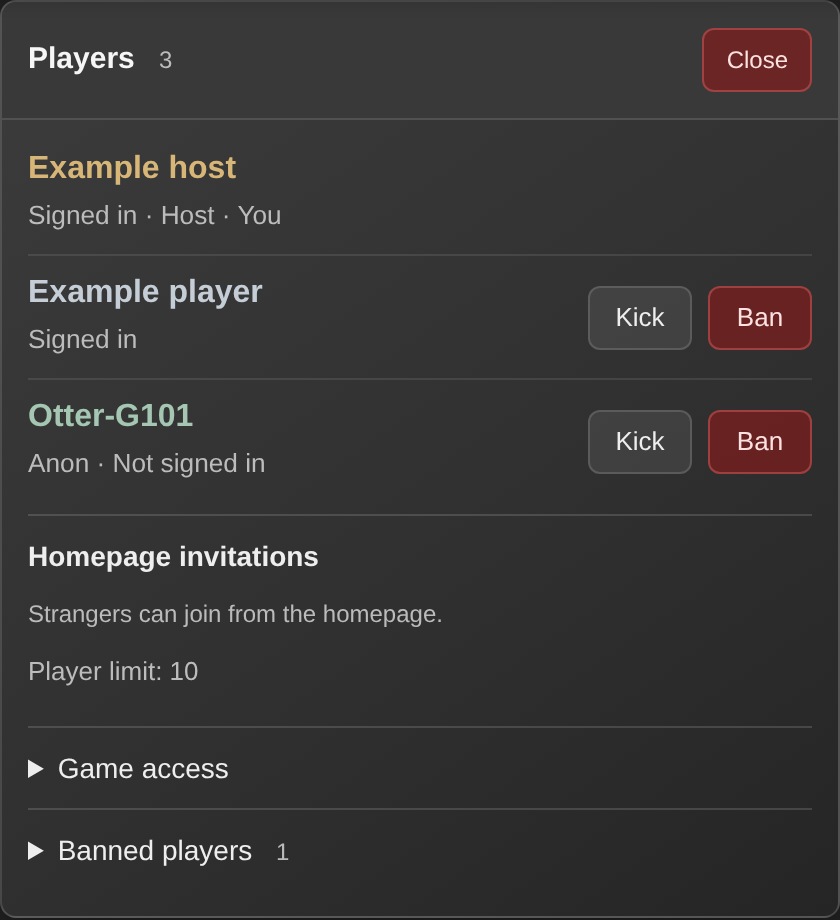
Removing a ban
If you change your mind, open Players → Banned players and click Unban beside their name.
If the puzzle is temporarily closed, you'll also need to open joining again before they can return.
Why do they keep coming back?
When someone plays without signing in, the game recognizes a guest identity associated with their browser. A ban blocks that identity, but a new private or incognito browsing session can look like a different person. Someone determined to return can keep doing this, which is why the stricter joining options are there.
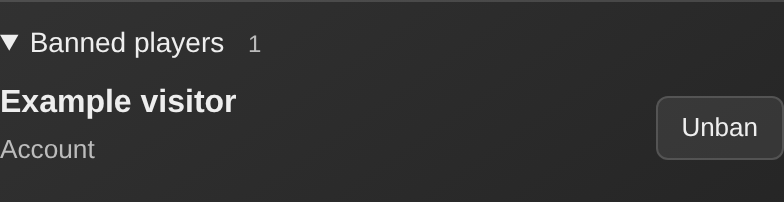
You can check each person's status in Players: it says Signed in or Anon · Not signed in beneath their name. A nickname alone doesn't tell you whether they have an account.
Guests also have a number at the end of their name, such as Otter-G101. That -G101 helps you tell guests apart, even if they choose the same nickname. Changing their nickname doesn't change the number. It isn't a permanent player ID, though, so don't use it to identify someone across different games or days.
Requiring sign-in closes off that easy anonymous return. If they come back using an account and continue misbehaving, ban that account. They can't use the same account to come straight back, even with another name or browser. Requiring a verified email adds another obstacle to making replacement accounts. Neither setting makes a determined person incapable of returning, but both give you something more useful to work with.
Choose who can join
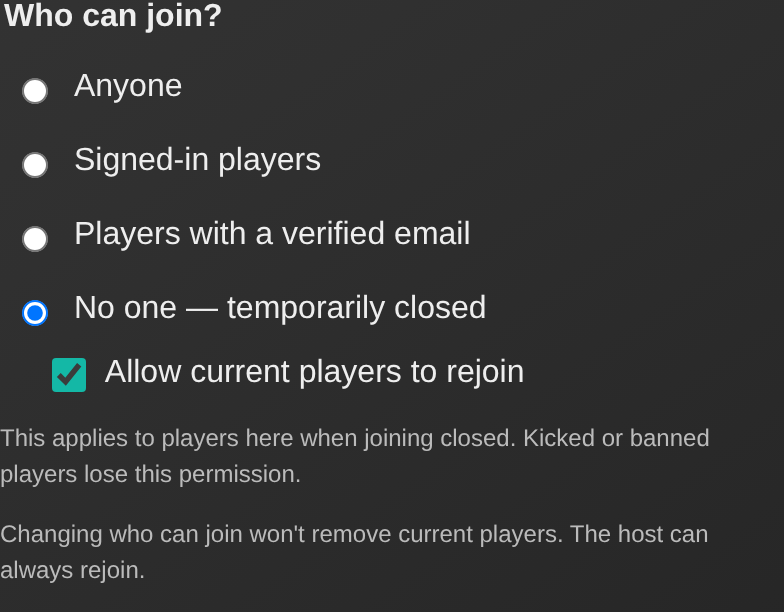
Open Players → Game access. Under Who can join?, there are four choices, from least to most restrictive:
- Anyone: People can join without an account, as long as they have a way to reach your puzzle.
- Signed-in players: People must sign in before joining.
- Players with a verified email: People must be signed in to an account with a verified email address. Just typing an address isn't enough.
- No one — temporarily closed: New arrivals can't join. You choose whether the people already there can return.
Your perfectly nice anonymous teammates can keep playing if you start requiring accounts. But if they leave, reload, or reconnect, they'll need to satisfy the new rule. It can be worth giving your group a heads-up before changing it.
Temporarily close the puzzle
Choose No one — temporarily closed when you want to keep playing with the people already there and stop new arrivals for a while.
Closing joining also takes the puzzle out of the homepage listings. If it was public, reopening joining makes it eligible to appear there again.
The Allow current players to rejoin checkbox starts checked. It lets the people present when you close joining return if they leave or disconnect, subject to the player limit. It doesn't include everybody who has ever played that puzzle. Guests should return using the same browser; their permission depends on the browser still recognizing them and isn't permanent. For a group planning to come back another day, signing in before you close joining is the more reliable choice.
If you uncheck that box, only the host can return. Everybody currently connected can still play, but anyone else who leaves or reloads will have to wait until you open joining again. As the host, sign in with the account that created the puzzle so the game recognizes you.
Kicking or banning someone while the puzzle is closed also removes their permission to rejoin. Unbanning them alone doesn't restore that permission while joining remains closed.
To open the puzzle again, choose one of the other three options under Who can join?
Public, private, and the puzzle link
There are two separate choices here: whether strangers can find your puzzle on the homepage, and who is allowed to join once they have its link.
A public puzzle invites people in from the homepage. A private puzzle stays out of those listings; you share its link with the people you want to play with. In the game, these are described as Homepage invitations and Link only.
Under Players → Game access, choose Invite strangers to make your puzzle eligible for the homepage, or Stop inviting strangers to take it out of those listings. Games made with your own image always stay out of the homepage listings.
How private is a private puzzle?
That really long thingy in the URL of each game is a randomly generated code. It might not seem like much, but the chances of someone typing a random code and ending up in your particular game are astronomically small. There are far more possible game codes than grains of sand on Earth's beaches. Guessing your private link isn't a realistic way in.
But if someone has actually been invited, they could invite someone else. Anyone who gets the link can try to join, subject to your joining rules and bans. And if you're streaming your game on Twitch, YouTube, etc., it's possible to reveal the URL. If you're trying to keep the game private, I recommend putting it into fullscreen mode or adding an overlay that covers the address bar. Check what your viewers can see before you start.
Who gets these controls?
The account that created the puzzle is its host. The Host label in Players shows you who that is when they're present. To use your own puzzle's moderation controls, make sure you're signed in to the account that created it.
You might see someone labeled Acting host while the host is away. They can use certain puzzle-organizing tools, but they don't inherit the power to kick or ban people or change who can join. There may be some future game modes that have different rules.
There's also a Player limit under Game access. Choose between 2 and 10, then click Apply limit. Lowering it doesn't remove people who are already playing. The host can return even when the puzzle is full, so you don't lose access to your own controls.
What about cheating?
I've also been adding checks and limits to the game server to make automated or abusive play harder. Those protections work in the background; they aren't settings you need to turn on.
If someone seems to be cheating, the same moderation tools are available. Please also let me know through the 🐞 report button in the game, on Discord, or through the feedback page. Tell me what happened, roughly when, and which player was involved. If you're contacting me outside the game, include the puzzle link too. Unfortunately, I'm unlikely to be able to step in while it's happening, but your report may help me add something that catches the same behavior in the future.
Why did I get banned for no reason?
I honestly don't know, but it doesn't necessarily mean you've done anything wrong. Some people seem to be confused about the public and private options: they create a game and then get surprised when people join. This is my fault for not making things clearer.
Or maybe someone is very particular about which pieces they want other people to move, and they feel you've broken some rule they never explained. There certainly is an etiquette to puzzles, but ideally they would say something, right? Or maybe some of the trolls are in fact the hosts.
Either way, I hope it doesn't put you off. I suggest making a new game where you're in charge and bringing your own sense of fairness to the new group.