How to play
How to Turn Your Own Image into a Jigsaw Puzzle
Choose a photo, make a puzzle, and invite your friends.
You can turn your own photos into puzzles on JigsawPuzzles.io and play them alone or with friends. A trip you took together, a family photo, your dog doing something ridiculous, or maybe some soothing homemade gradients? We call these custom puzzles.
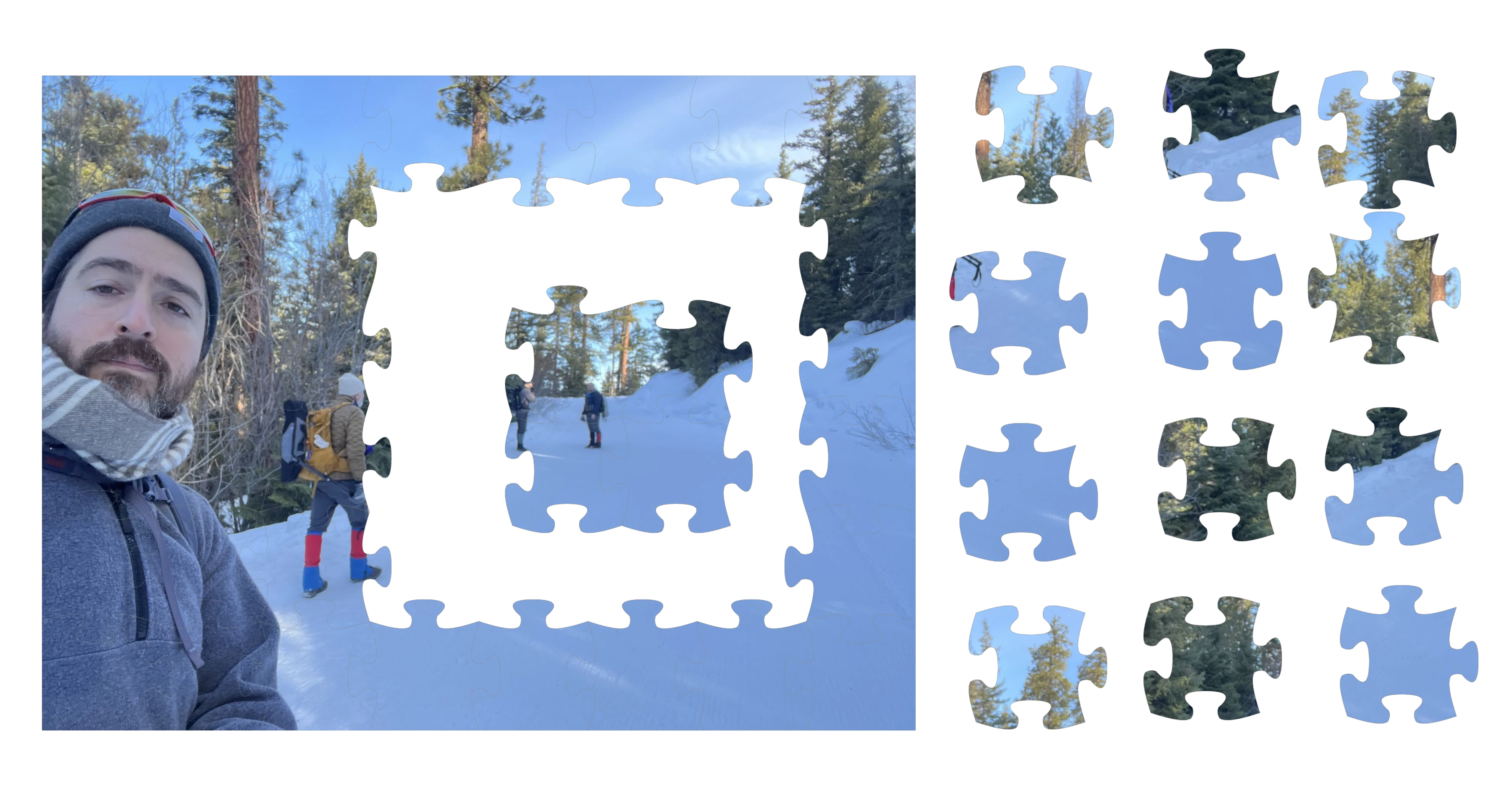
For this example, here's a photo of me and some friends on our way up a mountain to go snowshoeing.
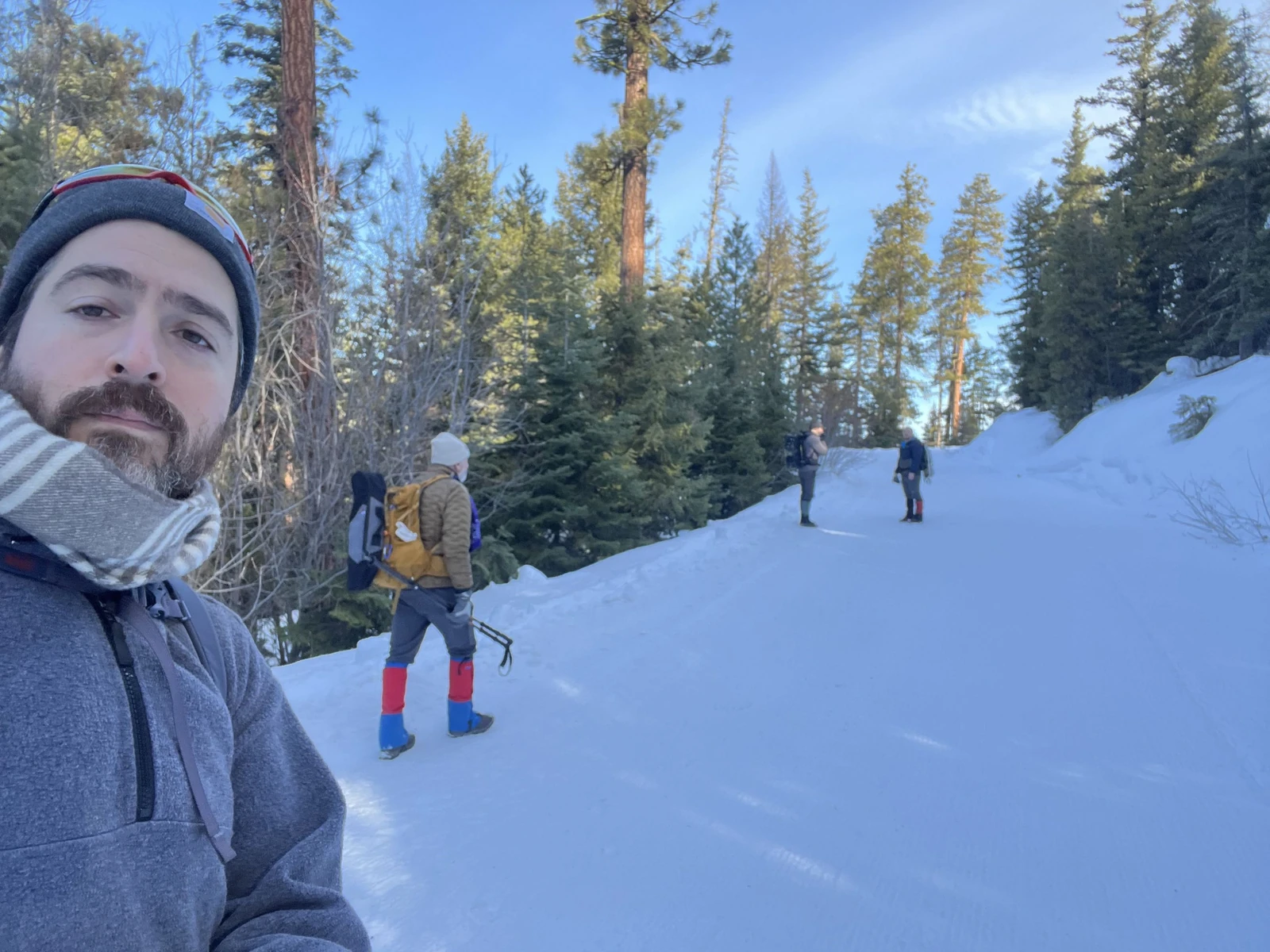
I put this photo up as a cautionary tale: it is about 50% snow!! And the sky has barely any gradient... and the trees... and everyone except me is pretty small in the picture. This puzzle is fine at 100–200 pieces, but at 1,000 it would be torture. Don't torment your friends!
So before we talk about how to actually use this site and set up your game, allow me to suggest that selecting a viable image is the first step. If the image has a lot of nothing-space like the grass behind that cute cow, or the grey sky behind that one goofy seagull, consider playing it at a smaller piece count. If the image has wall-to-wall action with visually distinct areas, then maybe 1,000 pieces will work.
You can also crop out some of that empty space. If you're not sure how to make a particular edit, an AI photo editor is another option: you can describe a small change in plain language. Do any editing before you create the puzzle, then send everyone that same edited file.
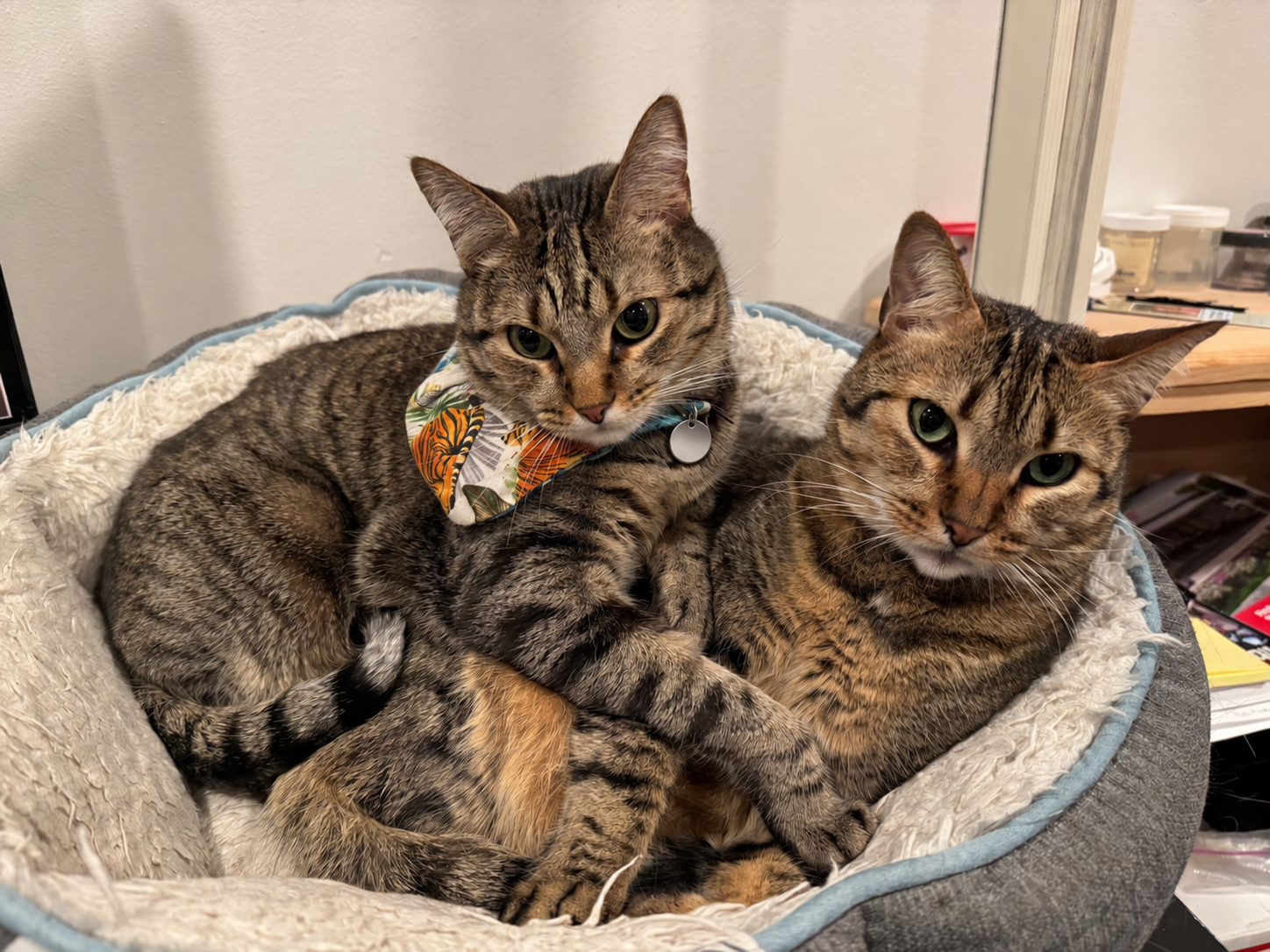
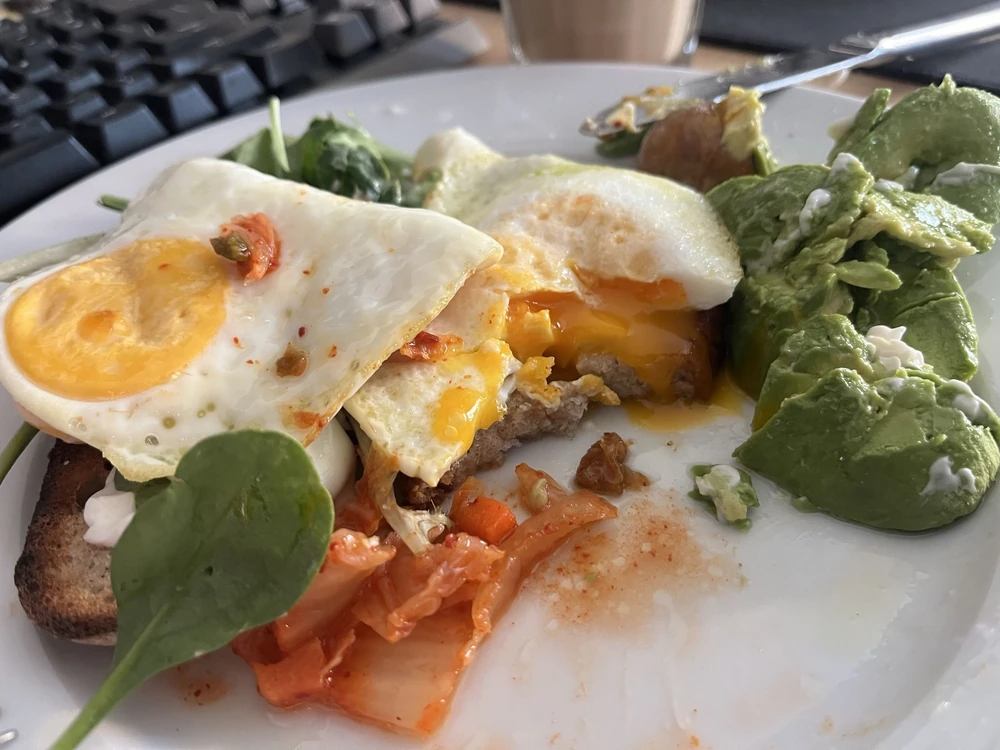
There's one unusual thing to explain before we start: the game doesn't upload your image to our servers. Your browser keeps a local copy. If you want to play with friends, you'll send them the photo through whatever you already use to talk.
So everyone needs two things: the puzzle link and the image file you used to create it.
This is deliberate. Custom images are intended for playing by yourself or with people you already know. This is not intended for interactions with strangers. We want each person to choose the image they're about to see, rather than opening a game link and discovering whatever someone else decided to put there.
It does make things a little awkward if you're planning a Valentine's Day surprise for someone... or maybe some scary Halloween image between consenting friends. You can absolutely arrange a puzzle date with a meaningful photograph, but they'll need the photograph before they can join you. The surprise will have to be the activity you've planned. We designed it this way to protect people from being link bombed with a photo of who-knows-what.
Anyway, let's make one.
- Sign in, open My Puzzles, and select the Custom tab.
- Click New Puzzle.
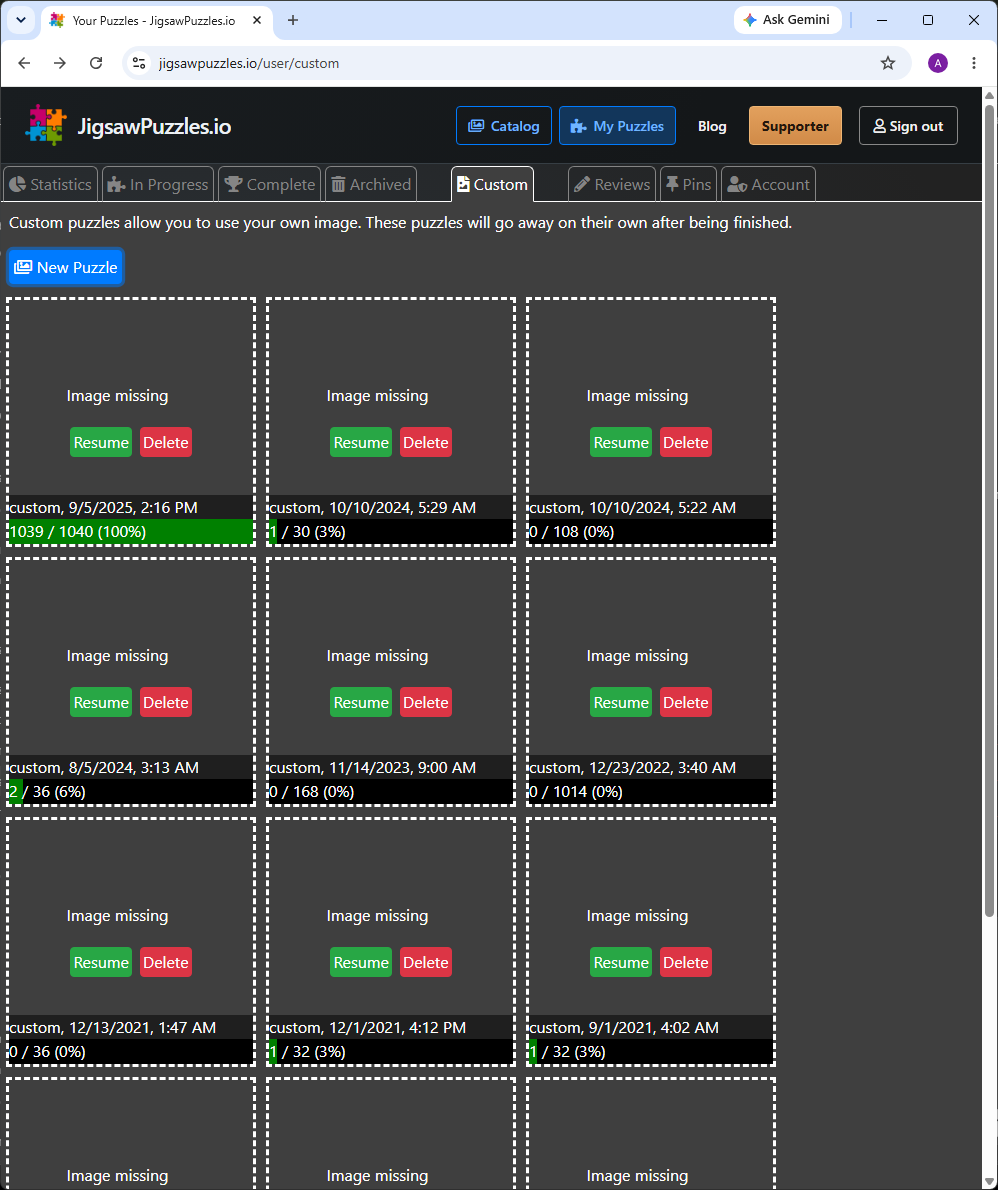
Open Custom, then choose New Puzzle. Click the image for the full screenshot. - Use the file chooser to select your image. The current game accepts JPG and PNG files at least 500 pixels wide and 500 pixels tall.
- Choose how many pieces you want. The resulting number may be slightly different from the number you enter so the pieces fit the image neatly.
- Click Begin.
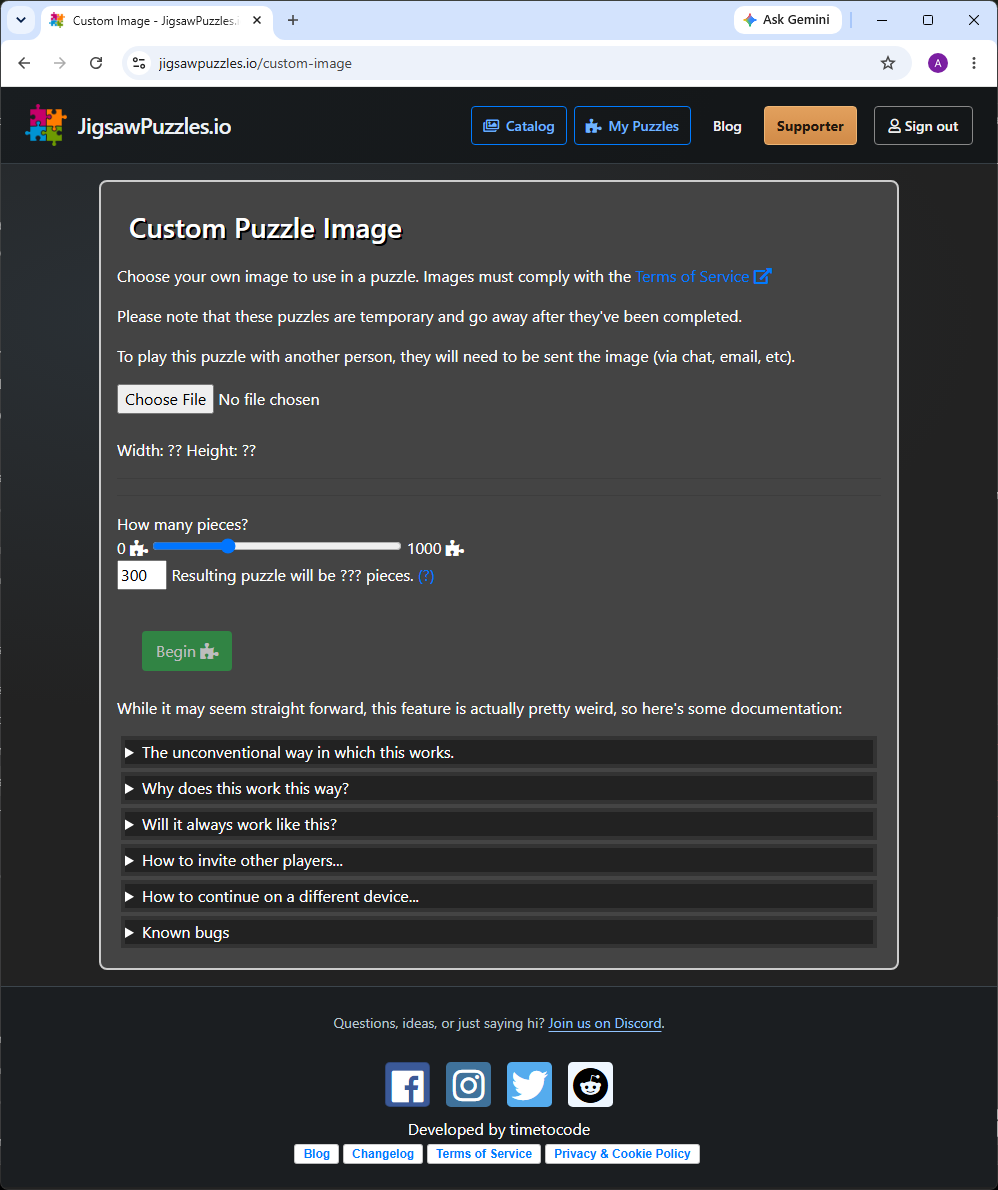
That's your puzzle started. If you're playing alone, you're ready to go.
To bring your friends in, copy the game link from your browser's address bar and send it along with the image file you used to create the puzzle. When someone opens the link, the game will ask them to choose their copy of the image. Then they can click Join Puzzle, and you'll be playing together.
There are a couple of things that can trip people up, so let's get those out of the way too.
“My friend has the same photo, but the game says it's wrong.”
Some chat and photo-sharing apps resize images without telling you. Your friend might have a smaller copy that looks exactly right, but has different pixel dimensions because it was shrunk. The game checks the width and height, so that smaller version won't work.
Try sending your copy as a file or document, rather than pasting it into a chat. If that still gets changed, putting it in a ZIP file or using another sharing method can help. Everyone should use the same file, including any edits you made before starting the puzzle.
“I came back and my image is missing.”
The image is stored in your browser on your device. If you switch computers, use another browser, or clear the site's saved data, the game will ask you to supply the image again when you return to an unfinished puzzle.
If you are going to do a bajillion custom puzzles over a long period of time and not finish them quickly, I highly suggest keeping a note of each game's link and which image you used.
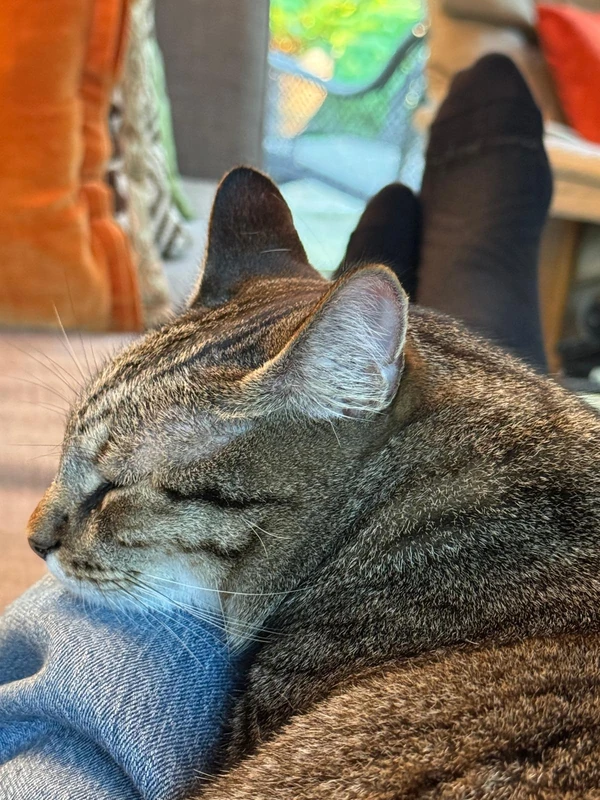
Please use images you have permission to use and follow our Terms of Service.
These instructions show the existing game. I'll update the guide when the new version is ready.
Got a photo in mind? Head to My Puzzles → Custom → New Puzzle and give it a try.