
Game updates
Preview Overhaul, Color Pickers, Chat Commands, and Menu Improvements
Some big upgrades and the return of a few familiar favorites.
Thank you all for your bug reports and messages! This game update brings together a few dozen suggestions and things I've wanted to add for years.
These changes are rolling out gradually across 2.0 games, so you may still encounter a game running the previous version for a while.
PREVIEW 🤩
So much can happen with the preview now. You can close it by clicking outside it, open it in a new tab or window, or turn it into a movable, resizable window and put it where you want it. I also put back the ability to go find the image in the catalog.
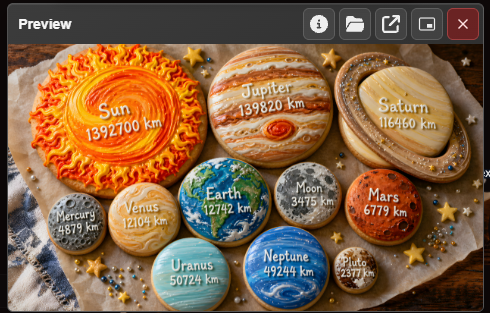
I'm addicted to using the preview, but I do play with a group of friends who sometimes make a rule that no one is allowed to look at it. For now, that's on the honor system. In the future, this will be an actual setting so you can turn the preview off if you want.
The nicer color picker is back, and it brought friends 🎨
So the square color picker is back, but since I already made a bunch of others, they're in there too. These are classic color pickers with your usual different takes on hue and saturation. There's also a fourth tab for whatever color picker your browser already has, if it has one. The game remembers which one you used last, so that's what you'll see by default, but you can change to any of them at any time.
There's also a magnified eyedropper that lets you pick colors right out of the puzzle itself. This has become my latest obsession.
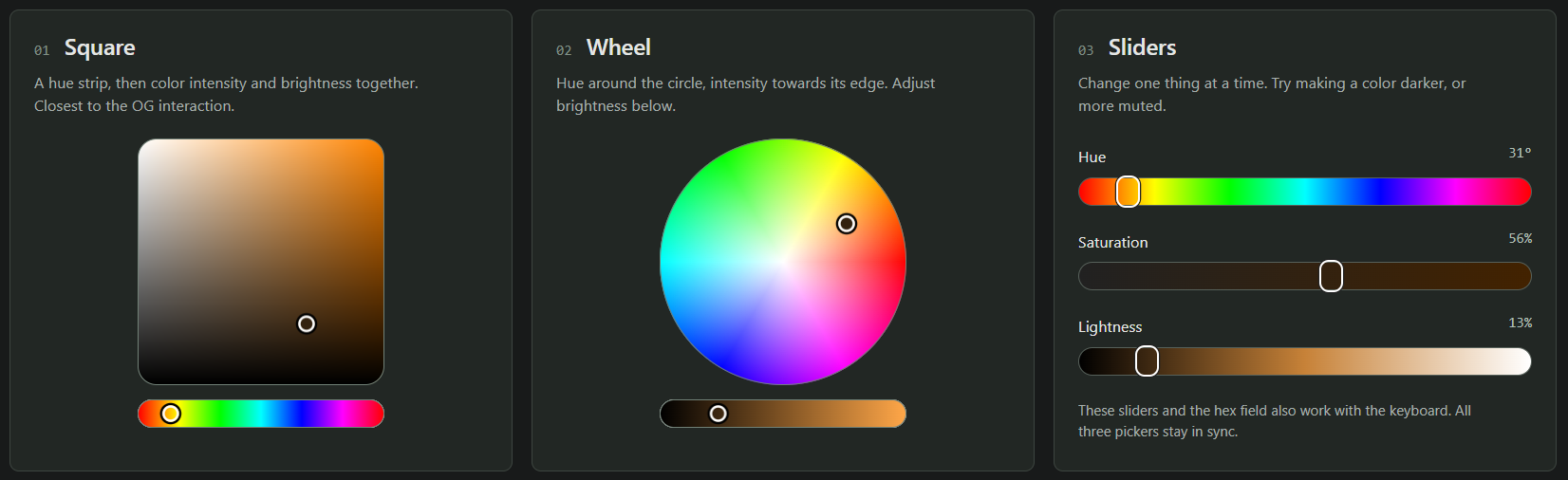
Watch the color pickers in action (15 seconds)
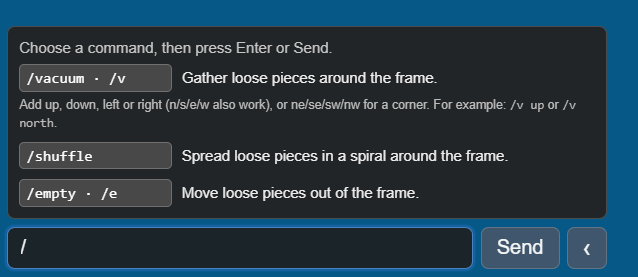
Chat commands appear when you type /
Type a forward slash in chat to see the commands and what they do. The host can use:
/vacuumor/v— pulls loose pieces in towards the frame, keeping them roughly on the side or in the corner where they started./vacuum <direction>— gathers loose pieces from around the frame on the specified side. For example,/vacuum northputs them above the frame. You can use:north,n, orupwest,w, orlefteast,e, orrightsouth,s, ordown
/shuffle— spreads loose pieces around the frame. Useful if you've accidentally vacuumed 1,000 pieces into one small area and don't like it./emptyor/e— moves loose pieces from inside the frame to above it.
Vacuum leaves the pieces inside the frame alone, so if you're in the middle of vaguely arranging pieces in there, they won't be disturbed. Of these commands, only /empty will clean those up.
A future patch is going to let us create zones around the puzzle that are immune to these chat commands, along with some extra organizing bins. Then we'll be able to both sort meticulously and vacuum ruthlessly without having to commit to only one style of playing.
Puzzle Introduction
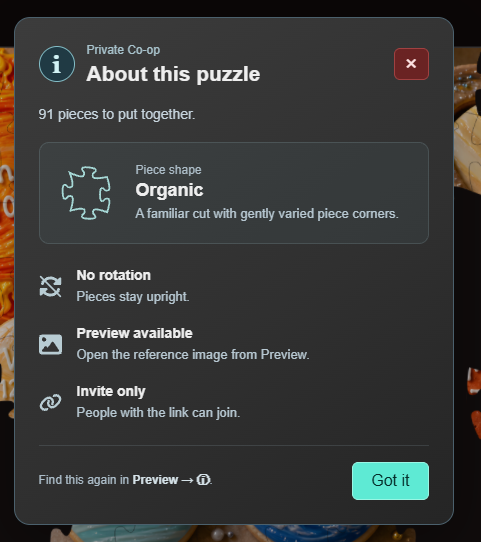
When you join a game, there's now a little description of its settings. There are only a few things that can be changed today, like the piece shapes and whether the game is private or public. In the future, there will be all kinds of potential settings, and this is where you can check them out. These also show up on the homepage so it's clear what mode a game is running before we decide to hop in.
Video Settings, v1
This will be tuned in the future, but you can now configure some video settings as if this were an actual game that uses your graphics card (because it is!). I'll write something more technical in the future. For now, this displays some basic info and lets you raise the render resolution for a sharper image on Retina displays, or lower the FPS limit to help save battery.
Interface Options and Misc. Changes
- Toggle between a compact game menu and the regular one.
- Show or hide FPS and latency.
- Hold the middle mouse button to pan, like in the original game.
- The sound menu is tidier.
- The fullscreen button is back. Most desktop browsers on Windows and Linux also let you press F11.
- Settings now opens a directory of sections instead of one giant panel.
- The Invite menu is more like the original, with the full link and a Copy button.
- The score display is tighter, see-through, and more like the original.


There's a lot more to do, but that's it for now.
Please keep telling me about anything that feels awkward or worse than the original. The little 🐞 button in the game sends your report to me, or you can find me on Discord. Thanks again :)
If you haven't tried 2.0 yet, here's the invitation and how it works.